Start with the photo you want to keep
Before moving a slider, decide what drew you to the photo. It might be the soft light on a face, texture in an old wall, or the quiet colors of an overcast day. Name one or two features worth protecting. This gives you a better guide than trying to make every part of the image brighter, sharper, and more colorful.
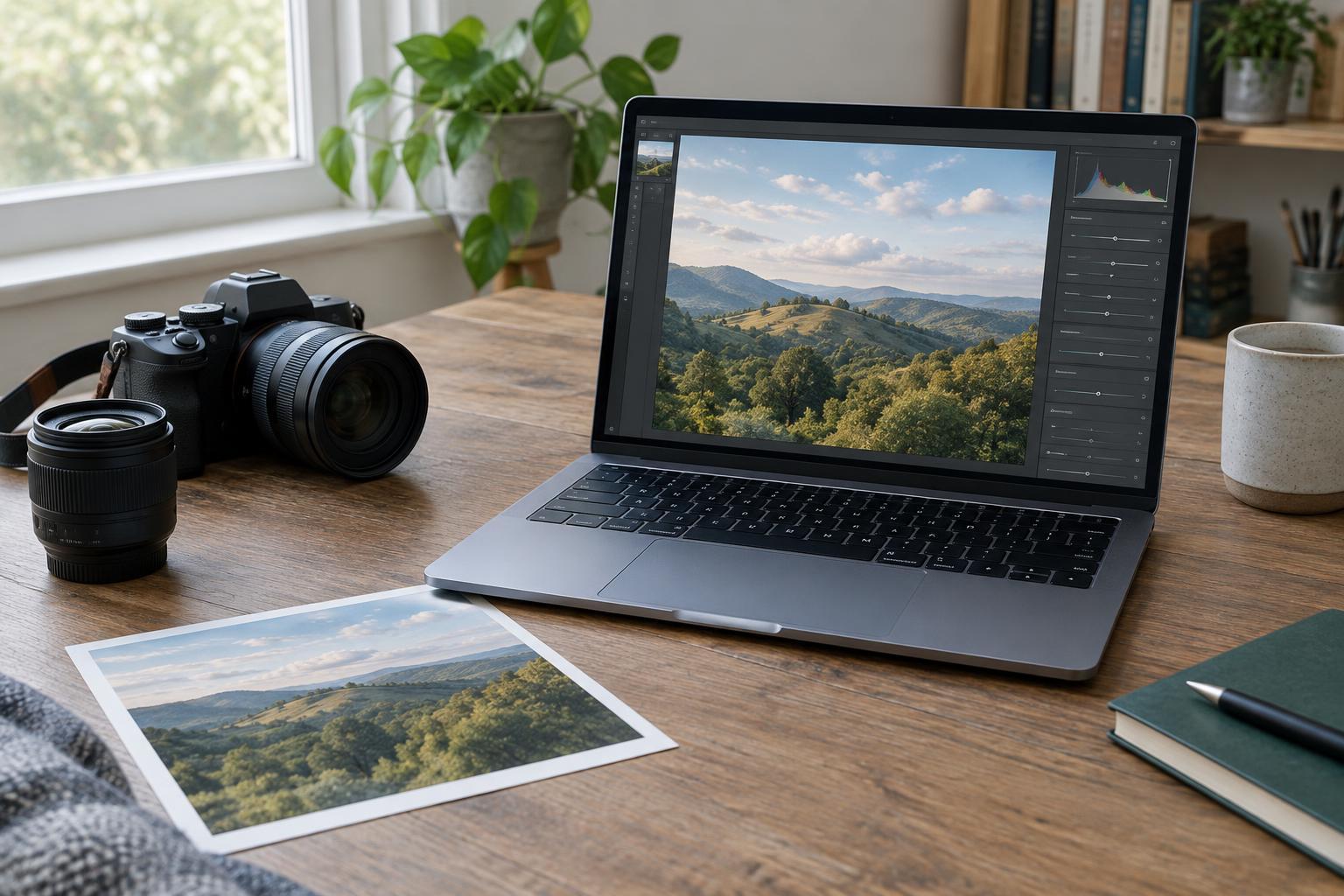
Make a copy of the original or use an editor that lets you revisit your adjustments. Then check the image at two sizes: fitted to the screen and zoomed in. The full view tells you whether the photo feels balanced; the close view reveals lost texture, rough edges, or blotchy areas. Return to both views throughout the edit. A change that looks impressive up close may be distracting when you see the whole picture.
Correct light with restraint
Start with exposure and overall contrast. Adjust exposure until the main subject is easy to see, rather than trying to make every corner equally bright. If light areas have become flat white, lower highlights modestly. If dark areas hide something important, lift shadows just enough to show it. Deep shadows and bright reflections can give an image depth, so they do not all need to disappear.
Watch for texture while you work. A cloud should still have shape, and a dark jacket should not become a pale gray patch simply because its shadows were lifted. If one area needs attention but the rest looks right, use a selective adjustment if your editor offers one. A small local change is often gentler than pushing a global slider until one difficult spot looks perfect.
Keep color believable
Set white balance by looking for colors you recognize, such as a white shirt, neutral wall, or familiar skin tone. A warm sunset can stay warm; the goal is not to remove the character of the light. Make a modest adjustment if the whole scene has an unwanted color cast, then pause. Your eyes adapt quickly to a new version, which can make an exaggerated edit seem normal after a few minutes.
Increase saturation only if the image genuinely needs it. Strong color adjustments can flatten subtle differences in leaves, fabric, and skin. If a single color draws too much attention, adjust that color separately when possible instead of reducing every color. You can also step away briefly and return with a fresh look. Ask whether the edited colors still resemble the scene you meant to photograph, not whether they are as vivid as the controls allow.
Use sharpening and noise reduction carefully
Sharpening makes edges appear more distinct, but it cannot restore detail the camera never captured. Too much can create bright outlines around objects or make pores, hair, and rough surfaces look harsh. Apply a small amount, inspect the subject at close range, and compare it with the unedited version. If your editor has a masking control, use it to favor clear edges over smooth areas such as skies or walls.
Noise reduction has a different trade-off: it can calm grain in a dark photo, but a strong setting may erase fine texture. Check hair, foliage, and fabric as you adjust it. A little visible grain often looks more natural than a smooth, smeared surface. If you find yourself switching between heavy sharpening and heavy noise reduction to repair the same area, try easing both back.
Finish by comparing, not piling on
Once the main adjustments are done, toggle between the original and the edited photo. The edit should help a viewer notice your subject without drawing attention to the editing itself. Look for signs that you have gone too far: glowing edges, unnaturally even skin, featureless skies, or shadows that look brighter than nearby midtones. Treat those signs as prompts to reduce an adjustment, not as reasons to add another.
For practice, edit one photo in two passes. In the first, make only exposure, contrast, and white-balance changes. Save a version, then make a second pass with selective adjustments, sharpening, or noise reduction if needed. Compare both versions at normal viewing size. This exercise helps you identify which steps genuinely improve the photo and which ones merely make it look more processed.